
Flux Pro Kontext
6 modes on this page
FLUX.1 Kontext edits an existing image from a written instruction, preserving the parts you did not ask it to change. Upload an image, describe the edit, and generate.
Input
FormMode
Prompt*
Image URL*
Aspect Ratio
Num Images
Result
Preview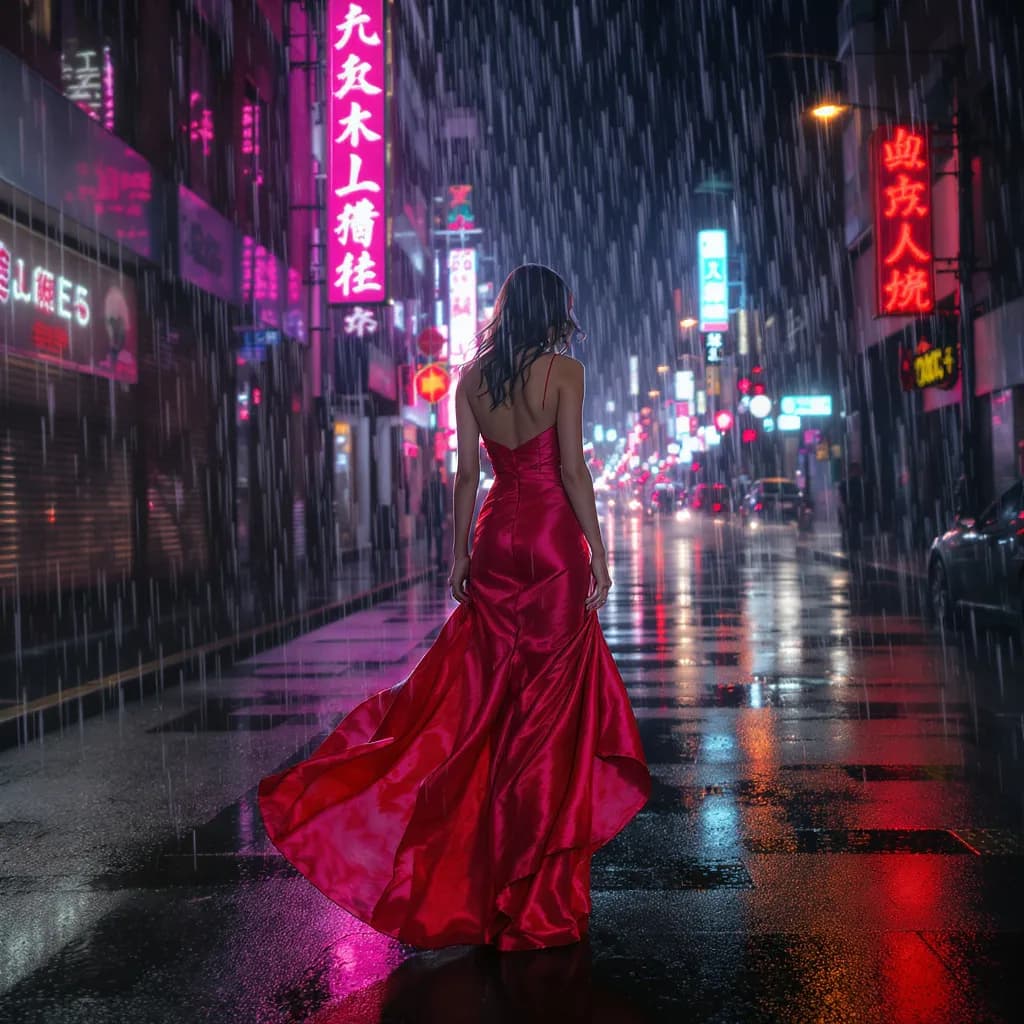
Generated with Flux Pro Kontext
Credits·~10s
What Flux Pro Kontext is for
Flux Pro Kontext from Black Forest Labs is a text-to-image model. You describe the frame and it returns a still image in about 10 seconds, billed at Credits. This page groups 6 modes (Kontext [pro] -- Editing, Kontext [max] -- Editing, Kontext [max] -- Editing (experimental Multi Image), Kontext [pro] -- Text to Image, Kontext [pro] -- Editing (experimental Multi Image), and Kontext [max] -- Text to Image) so you are not hunting separate URLs for the same family.
Flux Pro Kontext is cheap enough that a generation usually fits the free Knowlify plan's credits. A typical run is about 10 seconds.
Pick Flux Pro Kontext for text to image at Credits and ~10s. Compare it with Flex, Flux, Flux 1 on the related cards below if you need a different look, speed, or input type.
How to use Flux Pro Kontext
- 1. Upload the still Flux Pro Kontext should start from, then write the change or motion in Input.
- 2. Run it. The prompt and file hand off to the Knowlify studio, where Flux Pro Kontext generates.
- 3. Stay in the studio if you want that frame or clip inside a longer narrated video.
What you need
- A prompt that names the subject, style, and framing.
- A source still (PNG or JPG) for the model to start from.
- Aspect Ratio (21:9, 16:9, 4:3, 3:2, and more).
Example prompt
a woman in a crimson silk dress standing in city rain at night, neon on wet pavement, night street photography, neon, rain, grain, no text, no watermark
Frequently asked questions
How do I run Flux Pro Kontext?
Run Flux Pro Kontext on Knowlify at /generate/flux-pro-kontext. This page has 6 modes in one dropdown. Write the prompt on this page and it opens in the studio, where Flux Pro Kontext generates a still image. The same studio also turns documents into full narrated videos.
Where can I use Flux Pro Kontext online?
On Knowlify (Black Forest Labs's model, knowlify.com/generate/flux-pro-kontext). You do not need a separate playground. Flux Pro Kontext runs in the studio next to document-to-video.
Can I make a longer video with Flux Pro Kontext?
Flux Pro Kontext itself produces a still image. On Knowlify you can take that output, or skip it and upload a document, and generate a full narrated video with a script you can edit.
What do I need to run Flux Pro Kontext?
A prompt and a source still. Flux Pro Kontext will not invent the starting frame for you on this mode.
How long does Flux Pro Kontext take?
Plan on about 10 seconds for a typical run, then whatever queue time the studio has. Video models sit at the high end of that range.
Does Flux Pro Kontext have more than one mode?
Yes. This page has 6 modes: Kontext [pro] -- Editing, Kontext [max] -- Editing, Kontext [max] -- Editing (experimental Multi Image), Kontext [pro] -- Text to Image, Kontext [pro] -- Editing (experimental Multi Image), and Kontext [max] -- Text to Image. Switch them in the Mode dropdown instead of opening a new URL.
What can FLUX Kontext edit?
Backgrounds, lighting, style, clothing, object removal, and text replacement, driven by a written instruction rather than a mask. Its main advantage over regular image-to-image is that untouched regions stay genuinely unchanged.
Do I need to mask the area I want changed?
No. Kontext works from the instruction alone, so you describe the change in words rather than painting a selection.